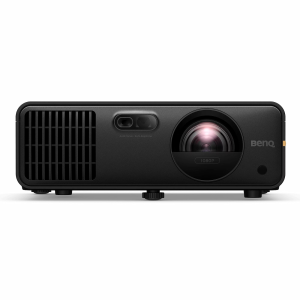
BenQ's AH700ST has auto-sensing technology that corrects and calibrates the screen with the press of a button. Made for golf simulators, this projector simplifies setup for flexible mounting.BenQ AH700ST Features
Easy Installation
Automatically detects your golf screen edges and projects to standard aspect ratios (16:9, 16:10, 4:3 and 1:1) with one-button setup. For non-standard ratios, a quick tweak via your graphic card settings is all it takes.
Fantastic Picture Quality
With 4000 lumens of brightness and 95% Rec. 709 color accuracy, this laser projector will not have a problem producing stunning visuals. Enjoy up to 20,000 hours of light source life, reducing costs associated with lamp replacements and maintenance costs.
Mounting Flexibility
The short throw lets you install in a safe and shadow-free location for your swing. Plus, the professional-grade motorized lens with 1.2x optical zoom lets you easily adjust the screen size without reinstalling, maintaining perfect picture quality.
The AH700ST is capable of projecting wirelessly from any device, with the purchase of a separate dongle.
Garage Tough
Built to withstand tough environments, the AH700ST's IP5X dustproof sealed engine operates reliably in temperatures from 32-104degF, eliminating the need for regular filter replacements.
How It WorksBenQ's Auto
Fit feature is super handy - it can tweak the image size, focus, and alignment to match your screen. However, you still need to place your projector so the image roughly fills your screen before you hit that Auto
Fit button.1. Placing the Projector
Mount or position your projector so the image is bigger than your screen on all sides. Yep, make it overflow a little, BenQ recommends a screen border of at least 2.4 around your screen. Now our C-Series screens don't quite play by those border rules - the image goes all the way to the floor. Luckily, Auto
Fit still plays nice. We checked.2. Firing It UpWhen you turn on your projector for the first time (or after a factory reset), you'll get a pop-up to start Auto
Fit. Press OK.3. Tweaking the Position
You'll see a pattern on your screen. This is your cue to adjust the projector's distance, tilt, and zoom so the pattern fits nicely inside the borders of your screen.4. Let Autofit Do Its Thing
Once that pattern is sitting inside your screen, press OK again. The projector will then automatically adjust the image to fit your screen's size and aspect ratio.5. Fine-tune with Corner FitAuto
Fit gets you close, but not always perfect. After it runs, you'll get a screen to adjust the corners just right.
See How We Did ItWatch us set up the AK700ST. The manual is also available in the Resources section below.
Get Started
What's IncludedBenQ TK710STi Projector
Power CordHDMI Cable
Warranty Card
Ordering Information
Shipping LimitationBenQ products ship to US addresses only.